
Submit your month for approval
Send a completed month to the client and see where it stands.
For consultants and workspace owners · Checked 13 November 2026
Steps
Check your entries
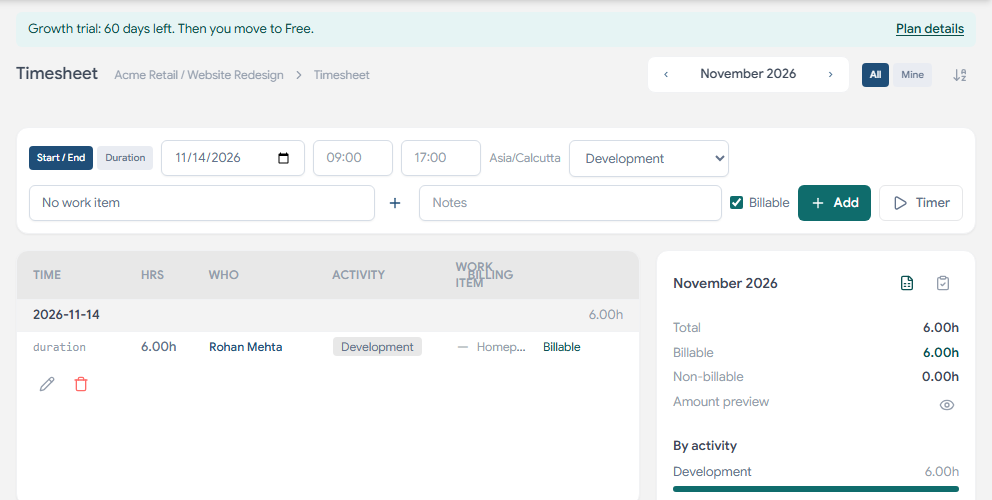
Open Timesheet and look over the month. The totals on the right show hours by activity and by person. The amount stays hidden until you click its eye icon. Fix anything that is wrong now.
Choose Submit period
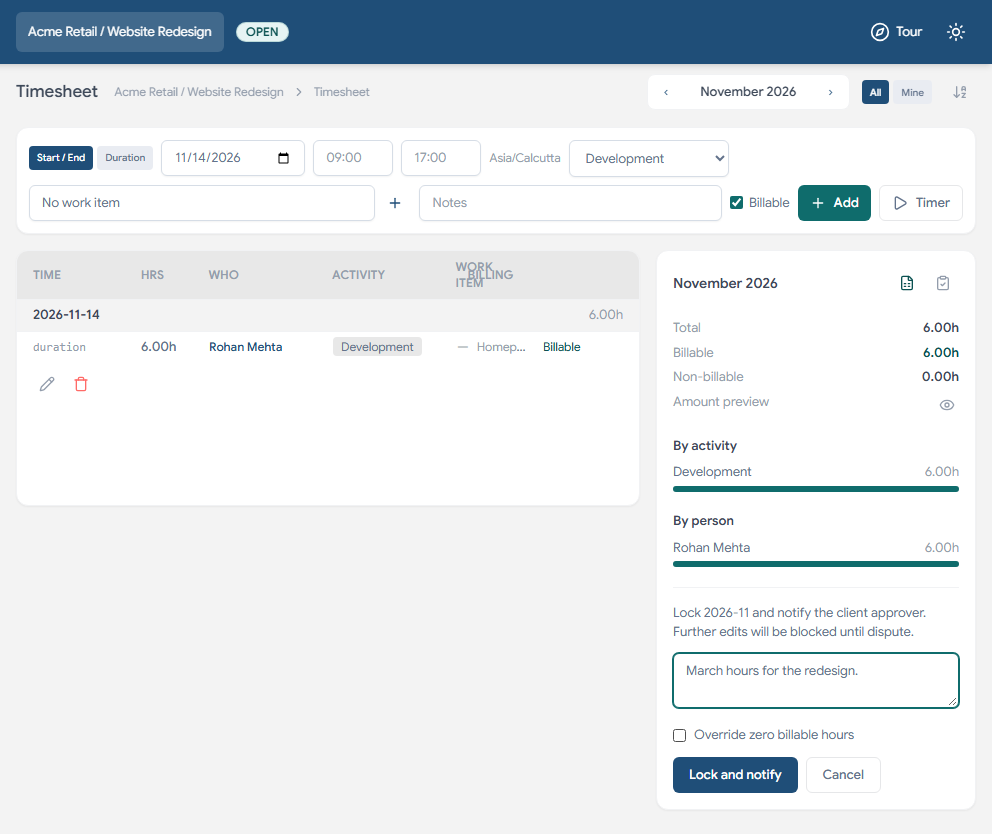
At the bottom of the totals, choose Submit period, optionally add a note to the approver, then choose Lock and notify.
Wait for the answer
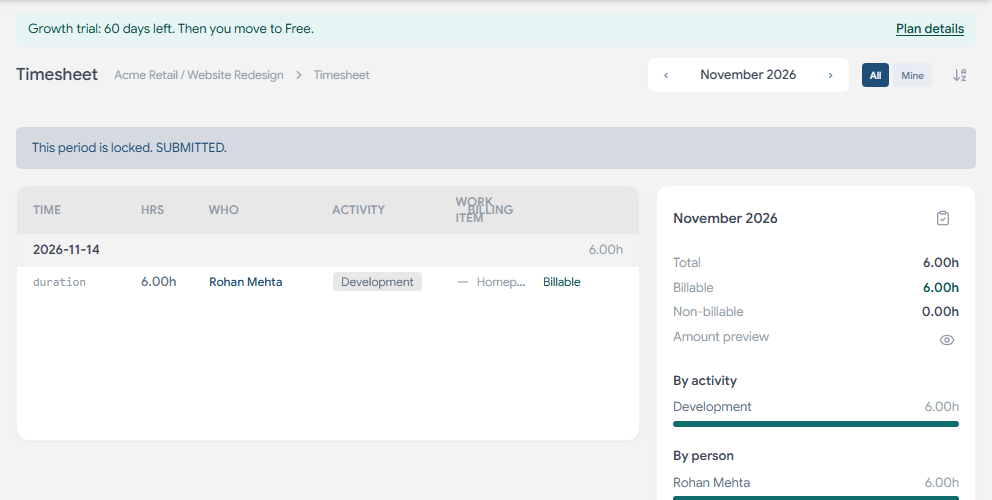
The period is locked and the client approver gets an email with a link. It is then approved, or sent back as disputed with a comment.
Good to know
- Submitting locks the month: no more edits until the approver disputes it. If you spot a mistake, ask them to dispute it so you can fix it.
- A month with no billable hours is refused unless a workspace owner overrides it.