
Invite consultants and client approvers
Add the people who log time and the client who approves it.
For workspace owners · Checked 13 November 2026
Steps
Open People
Inside the project, choose People in the side menu.
Invite the person
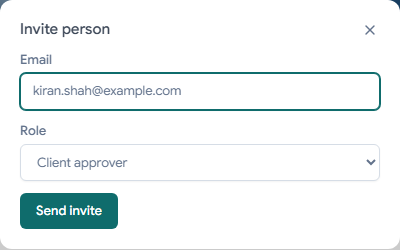
Choose Invite person, enter their email and pick their role: Consultant, Client viewer, Client approver or Owner. They get an email with a link.
They join
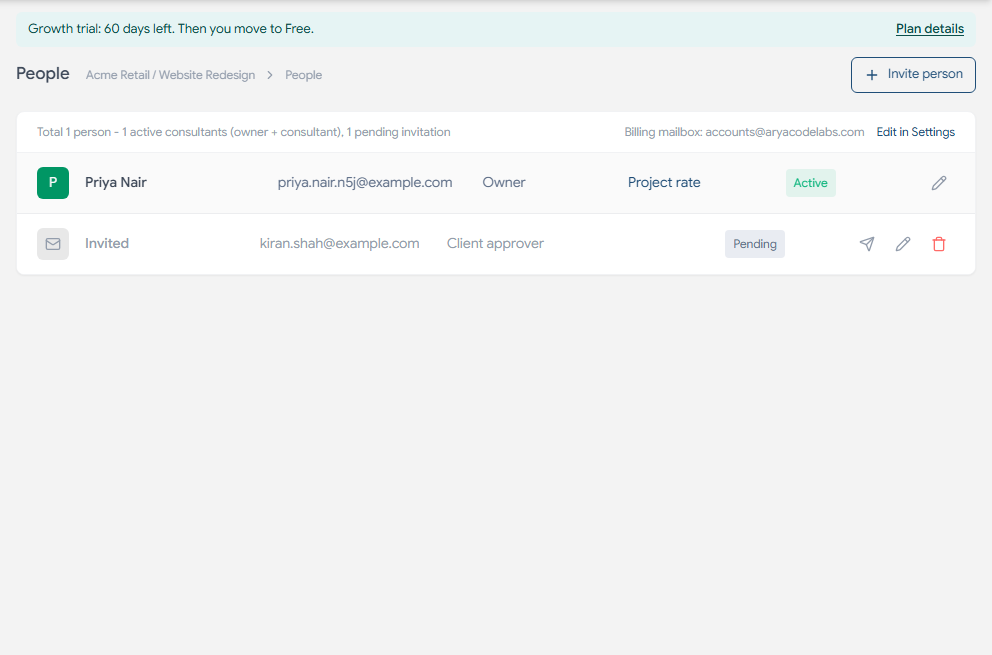
The person opens the link, creates an account or signs in, and the project appears in their project list. Until then they show as Invited, and you can resend the invite.
Good to know
- Invited clients only see the projects they were invited to. They do not get a workspace of their own.
- If the invite does not arrive, ask them to check spam, then use Resend invite.
- A client approver can approve months. A client viewer can only look.